About CX2 · CX2 Open · Brickwatch
Brickwatch
First release
In operation on one pilot building since October 2026. Brickwatch is the user interface of CX2 Open: the program operations staff open in the morning. It shows the building as it is right now and as it was, finds deviations and writes reports.
It runs on the edge server together with the rest of CX2 Open and reads the same Brick model and the same time-series database that Bricklogger fills. No data is moved in order to show it.
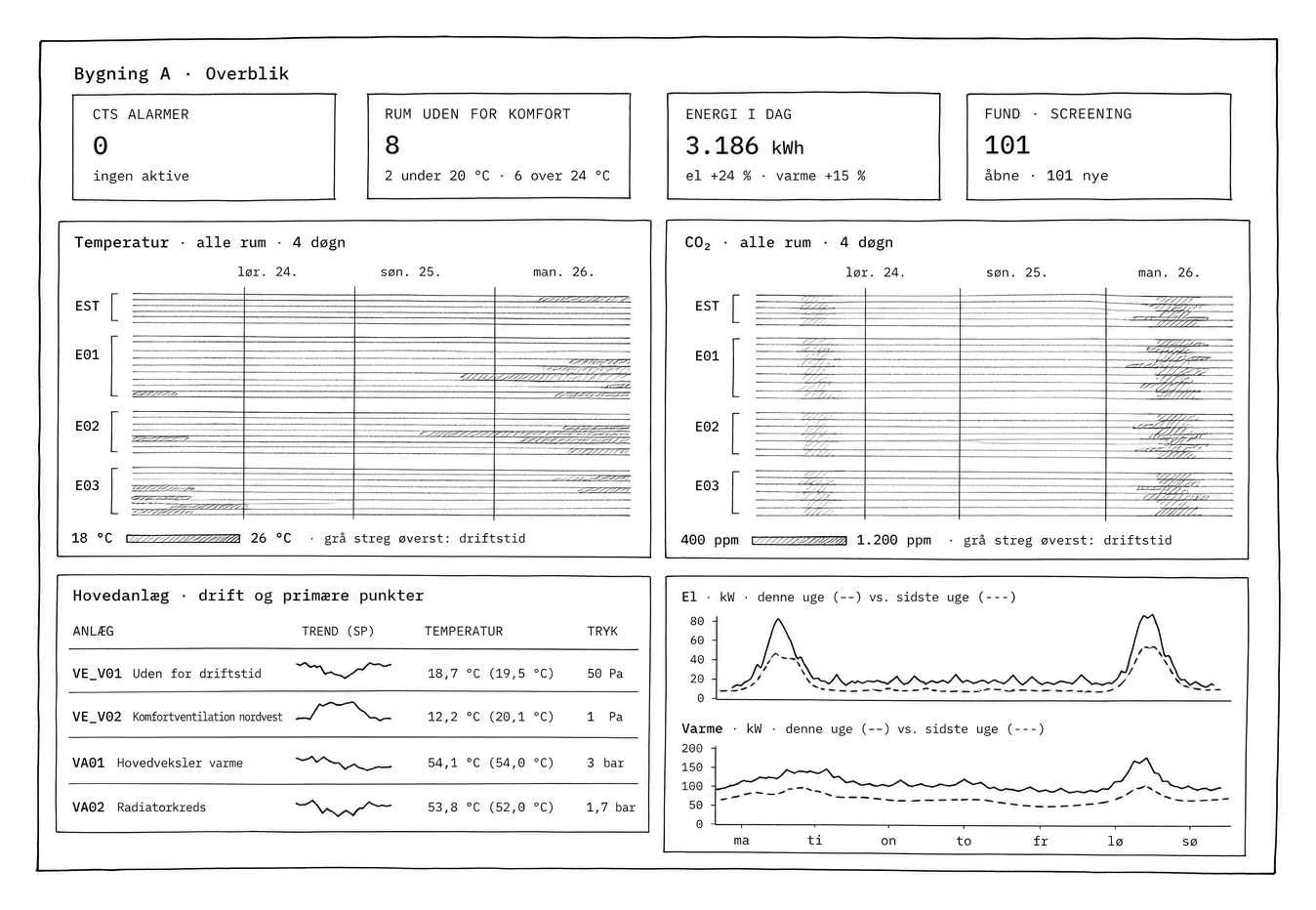
The drawings are simplified renderings of the screens in the pilot building, drawn from real screenshots. The program changes week by week, so the drawings may differ from what is running.
01Overview: every room on one card
The front page shows the whole building on one screen: a colour matrix with the temperature in every room over the last four days, the same for CO₂, a table of the main plant with its operating points, and electricity, heat and water against the previous period.
A row is a room, a column is an hour. A room that is too warm every afternoon shows up as a stripe, before anyone has complained.
Beyond that you can build your own dashboards with a name and a period and show them on a screen in the foyer or the plant room.
 Tap for full size
02Plant: the picture from the plant room
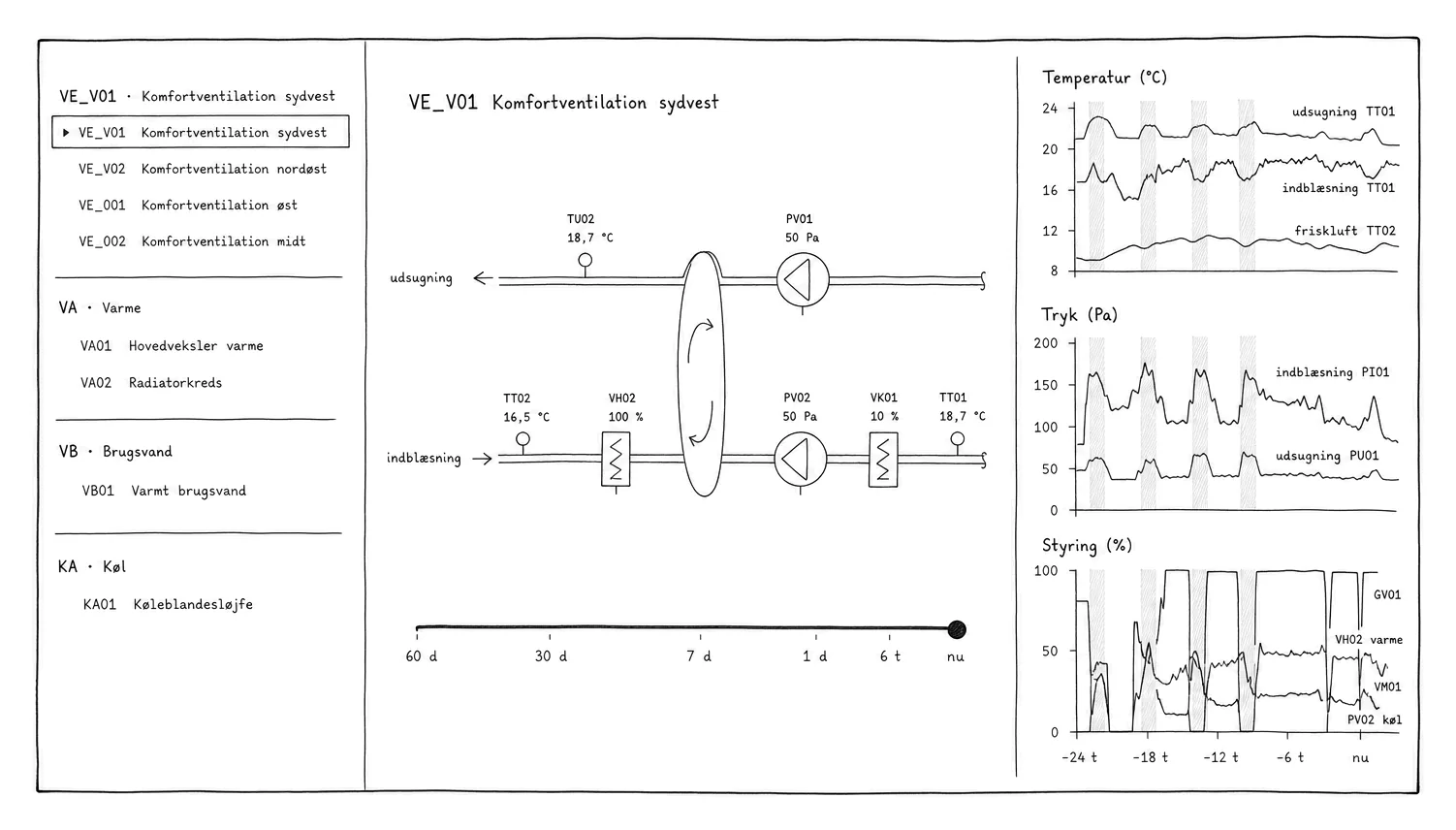
Each plant item is shown as a schematic with current values, as an operations technician knows it from the building management system: heat recovery, fans, filters, temperatures, pressures and air flows. The most important curves sit below the picture.
A time slider winds the picture back, so you can see what the plant did yesterday afternoon. A click on a value opens its curve for the last 24 hours, with the setpoint beside it where there is one.
 Tap for full size
03Zones: the floor plan and the room
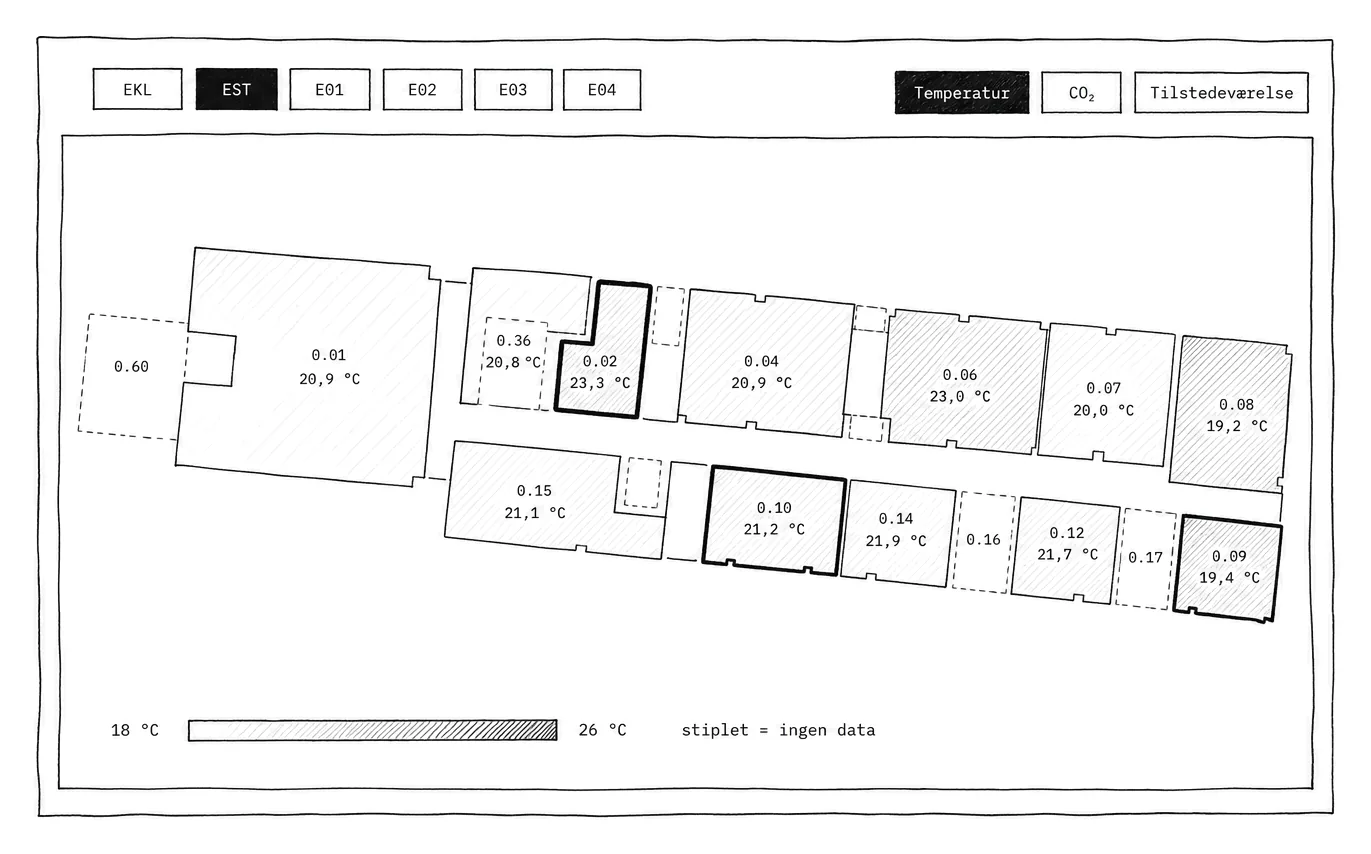
The floor plan colours the rooms by temperature or CO₂, storey by storey, and a time slider shows how it looked earlier.
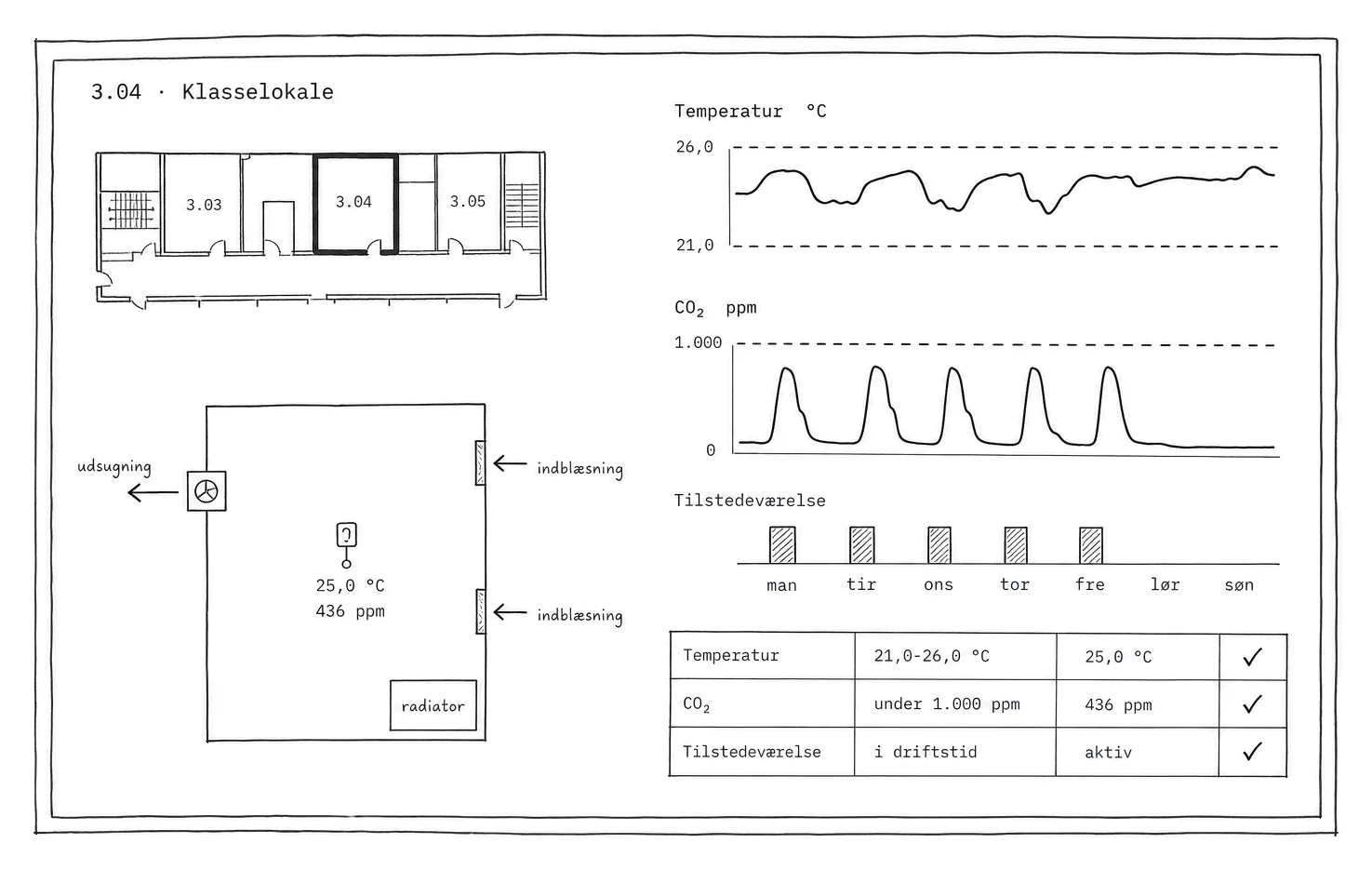
A click on a room opens the room view: temperature and setpoint, CO₂, occupancy, the ventilation damper and the heating valve, with curves for the chosen week and the operating hours marked. The number of people is estimated from CO₂ and air flow. At the bottom, an indoor climate assessment against the requirements in the Danish industry guideline for indoor climate: hours above the limit, in and outside operating hours.
The assessment is a screening based on the measured hours, not a formal verification by a particular method.
 Tap for full size
 Tap for full size
04Energy: electricity, heat, cooling and water
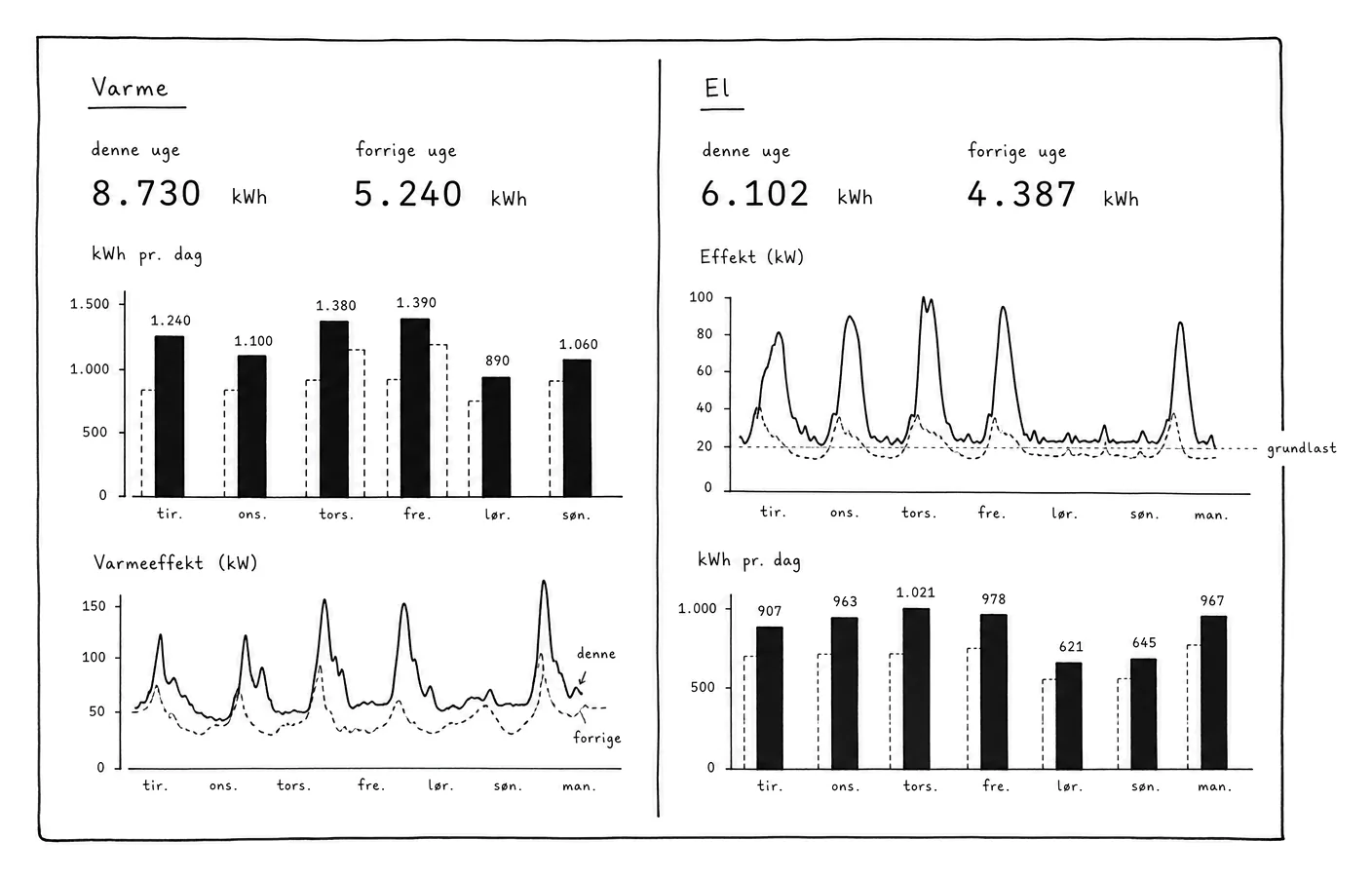
The energy page shows each medium on its own: consumption against the previous period, the split between meters and panels, the share outside operating hours, and for heat an energy signature that plots consumption against outdoor temperature, so a cold week can be told from a bad week.
 Tap for full size
05Data explorer: charts by describing them
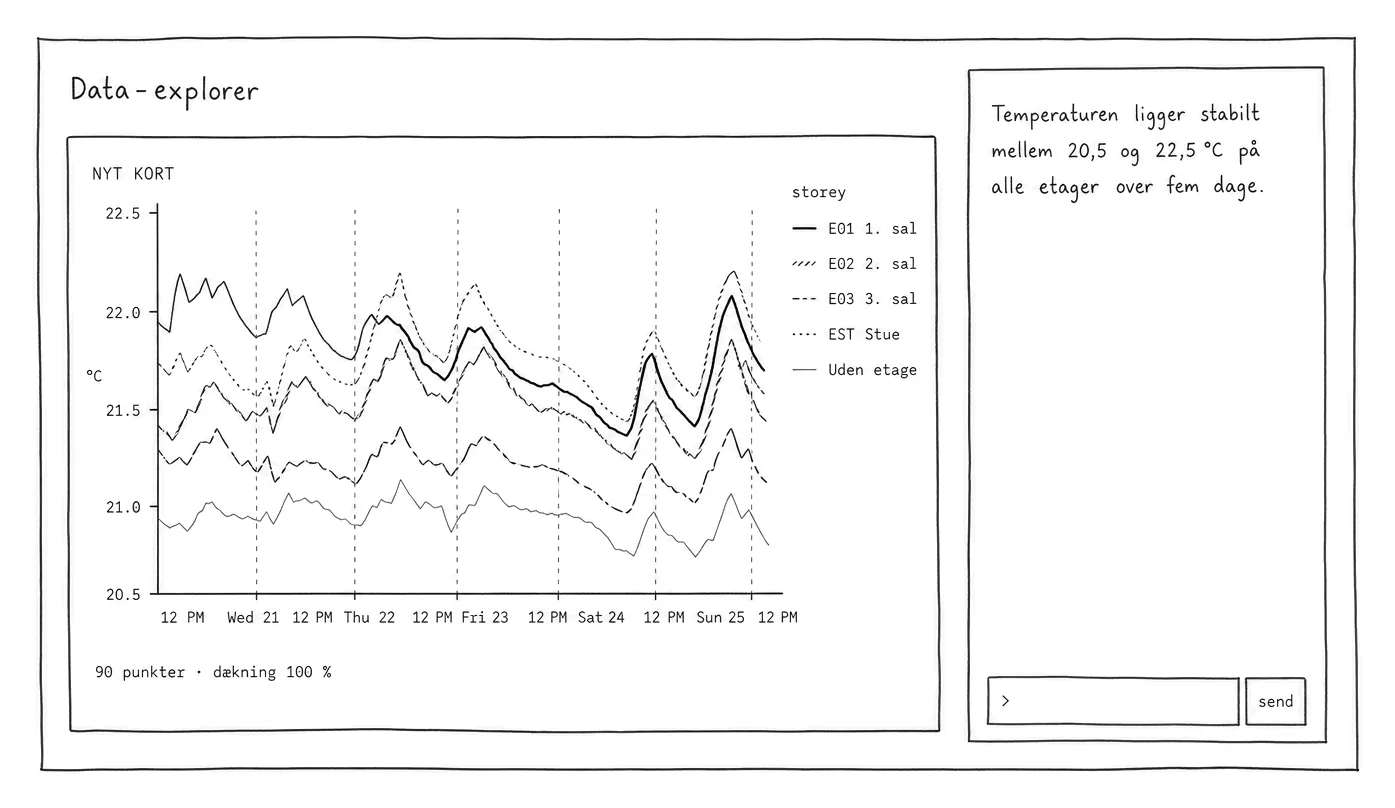
In the data explorer you describe the chart you want in plain language: the temperature in all classrooms on the third floor over the last week, with the setpoint dashed. The chart can be corrected with new instructions, and when it is right it is saved and placed on a dashboard.
Below the chart it always says which points are included, how they are aggregated and how complete the data is. Time series are drawn by Grafana, other charts by Vega-Lite.
The assistant is optional. It sends selected data to an external language model, only when the user asks, and the price per answer is shown. See where data is processed.
 Tap for full size
06Analyses and findings
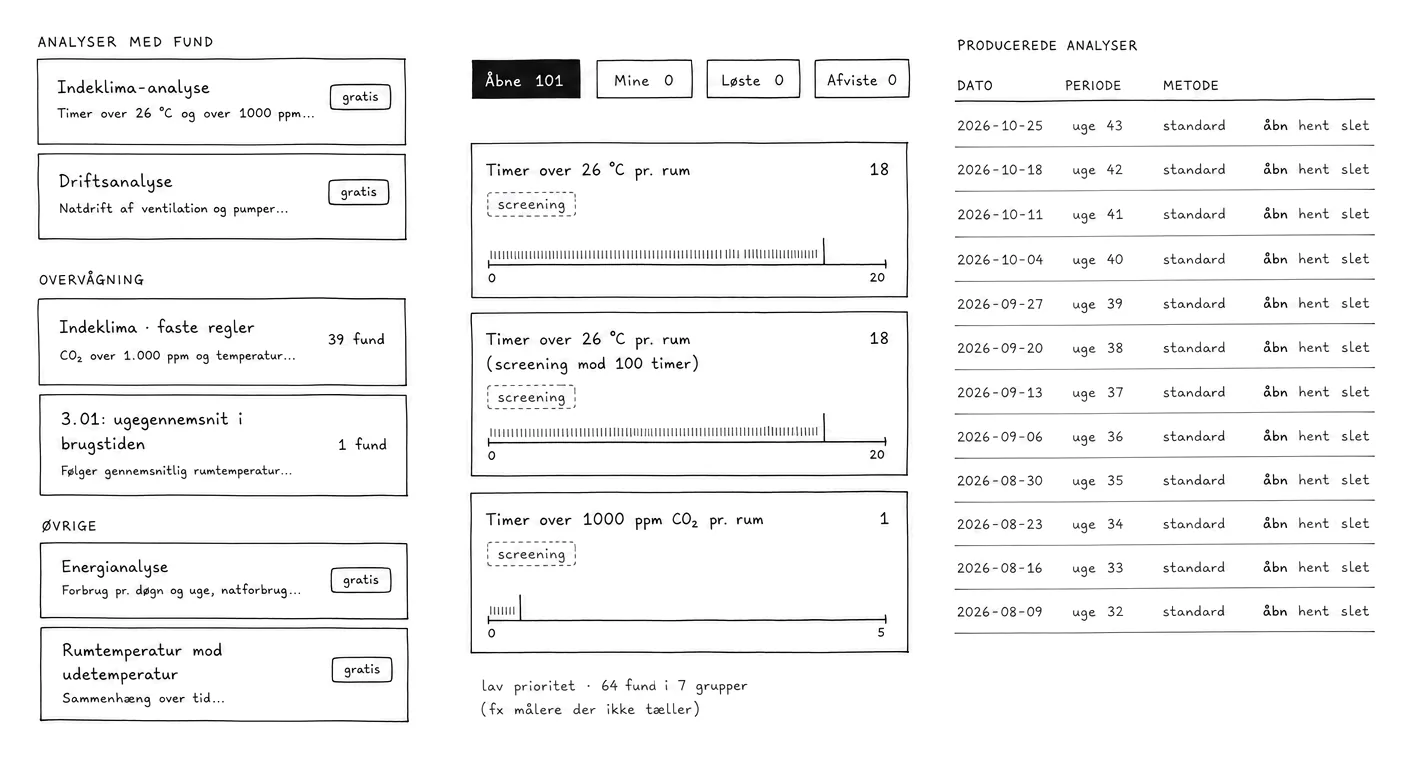
Rules run continuously over the measurements: rooms above the limit for too many hours, meters that stand still, plant running outside operating hours, deviation from setpoint. Each finding has a place, a period, a severity and evidence, and a link to the room or plant it comes from.
Findings have a status, an owner, a priority and comments, so they can be followed until resolved, and related findings are grouped when twelve rooms under the same unit are warm at once. The building management system's own alarms are shown separately, so a screening is never mistaken for an alarm.
 Tap for full size
07Reports
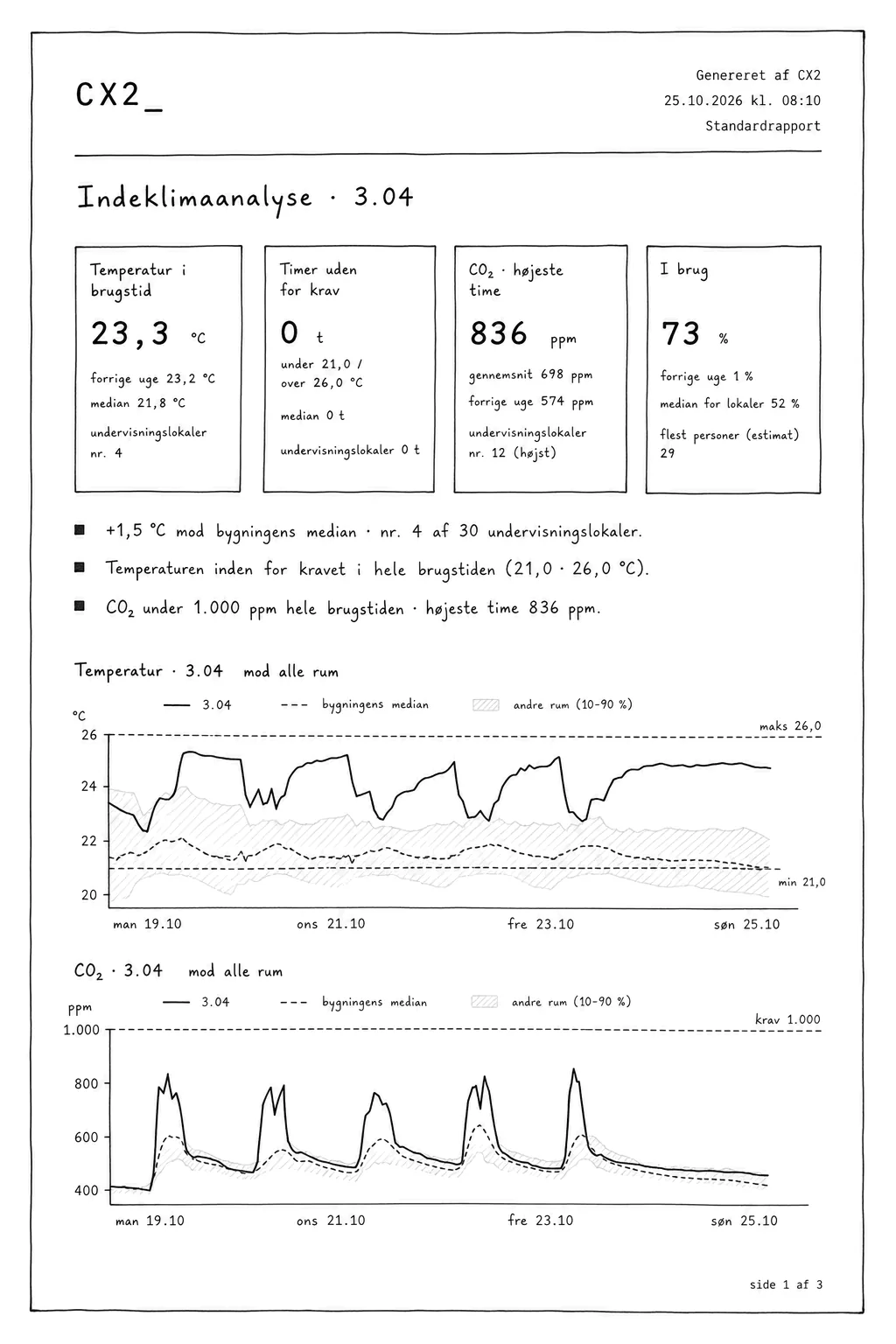
Standard reports are made without AI and cost nothing: an indoor climate analysis for a room, compared with the building's other rooms and with recent weeks, and an energy report. They come as PDF with page numbers and the CX2 mark.
If you ask the assistant for an analysis, it first makes a plan, which the user approves, and then writes the report with text and charts. What it costs is on the plan before you say yes.
 Tap for full size
08How it fits together
CX2 Open consists of two programs on the same machine. Bricklogger talks to the building's technical systems and writes the measurements to a time-series database. Brickwatch reads the database and the Brick model and shows them. Between them sits the Brick model, which says what each point is and what it belongs to.
Brickwatch is not the only thing that can read the data layer. Open Twin, a 3D viewer on the same database and model, is another tool, and Brickwatch links to it. That is the point of an open data layer: the user interface can be replaced, the data stays.
What runs on the edge server, and how: Edge server and architecture.
Want to see it running?
Book a 45 minute meeting where we show Brickwatch on the pilot building and talk about yours.
See use cases → Get started →